
Saturday, July 12, 2014

Wednesday, October 2, 2013
Should I Get A Nexus 7?
I recently responded to a question from a friend of mine who wanted to know about getting a Nexus 7 tablet. He already has an iPhone and thought the Nexus 7 looked nice, seemed to do what he needed from a tablet, and at $230 was a more attractive price than an iPad Mini ($100 more). He said he needs to read books, Nook textbooks and PDF textbooks, create documents in Word/Excel, stream videos and music, and web surfing.
My take
First of all, when comparing with iOS, the Nexus 7 running Android can have only one app can on screen at a time. There are handwritten note-taking apps available on Android in the Play Store and they work with a standard touchscreen stylus pen; but beware, not all apps are created equal.
My concern is would be around the quality of Android's note taking apps. The absolute best apps debut on iOS before eventually being ported to Android if they are not exclusive to iOS. For example:
The best handwriting and note-taking app I've seen is an iOS exclusive called Notability: http://itunes.apple.com/us/app/notabili ... 93530?mt=8
Evernote's Penultimate is good too, but mainly because it syncs with Evernote. The handwriting engine on Penultimate is one of the nicer ones available but still not quite as nice as Notability. If handwriting notes is important, there are apps on Android that will get it done, but the best will be on iOS.
I already own an iOS device
For someone who already owns an iOS device, there is also the obvious lack of "native compatibility" between the tablet and an existing iOS device. Although an Android tablet would do everything needed in this case, if I were making this decision I would keep things iOS because of the simplicity of things like iMessage, Reminders, Airdrop, iCloud, and Photostream. Taking a picture from an iPhone and having it almost immediately available on your tablet is very handy. I have been in many sessions when I’ve been taking notes and added pictures to them from whiteboards, charts, etc…
Can cross-platform can be done?
There are several cloud-services like Dropbox, Skydrive, and Google+ Photo Backup available as Photostream or Airdrop substitutes. Google Hangouts can substitute iMessage and Google Docs can substitute for iCloud. Again though, generally apps available on iOS are better than their counterparts on Android – even some of Google’s own apps have seen better versions released on iOS than Android.
Are iOS apps are better?
Developers have said that the Android toolkit for developing apps is lacking in certain areas when compared to iOS tools. Apple has seemingly just put more effort into enabling developers to build quality apps. Apple also maintains application uniformity and holds developers to strict approval standards.
In the end it comes down to how important the apps are to your everyday use. For simplicity in the connectivity between devices, stay with the same OS. For people who are a little more tech savvy, using cross-platform apps may not be much of a hassle at all.
Monday, September 30, 2013
List of Commands for Siri
I’ve had lots of people ask about what exactly Siri can do. There’s quite a bit that the computer AI we call Siri can do, but here’s a list of known commands and questions Siri can handle.
If you know of any more, please drop them in the comments section!
Phone
- Call (name)
- Call (name) home
- Call (name) on his work phone
- Call (number)
- Call home
- Call 911
- Get my call history
Facetime
- Facetime (name)
- Make Facetime audio call
App Launching
- Launch photos
- Play Infinity Blade II
- Open Facebook
- Post a Tweet
Messaging
- Tell (name) I’ll be right there
- Send a message to (name)
- Send a message t0 (name) saying ‘How about tomorrow?’
- Send message to (number)
- Text (name) and (name), ‘where are you?’
- Tell my wife I’m on my way home
Calendar
- Set up a meeting at (time)
- Set up a meeting with (name) at (time)
- Meet with (name) at (time)
- Set up a meeting about (description & time)
- Move 3pm meeting to 4:30
- Reschedule appointment with (name) to (date)
- What does the rest of my day look like?
- What’s on my calendar?
- Cancel (event)
- When is my next appointment?
Sports
- Did (team name) win?
- How did (team name) do last night?
- What was the score last time (team name) played (team name)?
- Show me the football scores from last night
- When do (team name) play next?
- What does the Premier League table look like?
- Who is the highest goal scorer in the Premier League?
Navigation
- Navigate to (destination)
- Navigate home
- Navigate to work
- Walking directions to (destination)
- What’s my next turn?
- Are we there yet?
- What’s my ETA?
- Find (place)
- Show me (place)
- Where is the closest (store)?
- Tweet (whatever you would like to tweet)
- Tweet (whatever you would like to tweet) with my location
- Search Twitter for (your search terms)
- Show me my tweets
- What’s trending on Twitter?
- Post to Facebook (whatever you would like to post)
Movies
- Where is my closest cinema?
- What’s playing at my closest cinema?
- Show me reviews for (film)
Music
- Play (name of song)
- Play (artist)
- Play (album)
- Play (playlist
- Play
- Pause
- Skip
- Play iTunes Radio
- Play more songs like this one
- Don’t play this song again
Reminders
- Add (whatever you want) to (name of list)
- Remind me to call (name) at (time)
- Remind me to take my medication at (time)
- Read my to-do list
- Remind me to call (name) when I get (destination)
- Email (name) about (whatever you like)
- New email to (name)
- Check email
- Any new emails from (name)
- Reply to (name)
Weather
- What’s the weather for today?
- What’s the weather for tomorrow?
- How’s the weather in (place)?
- What’s the weather for this evening?
- Is it windy?
- When is sunrise/sunset?
Clock
- Wake me up at (time)
- Set an alarm for (time)
- Turn off alarm
- Delete alarm
- What time is it in (place)
- What is today’s date?
- What’s the date this Saturday?
Timer
- Set time for five minutes
- Set a timer for (amount of time)
- Show timer
- Pause timer
- Resume timer
Contacts
- What’s (name) address?
- What is (name) number?
- When is my wife’s birthday?
- Show (name)
- My mum is (name)
- My brother is (name)
- Call mum
Find Friends
- Where is (Find Friends contact)
- Is my wife at home?
Notes
- Note (whatever you’d like to note)
- Find meeting notes
- Show my notes from last week
- Read my last note
Settings
- Turn on airplane mode
- Turn on bluetooth
- Make screen brighter
- Go to Twitter settings
- Show me privacy settings
- Enable Wi-Fi
- Turn on Do Not Disturb
- Open mail settings (or Bluetooth, Wireless, iCloud, and a lot of other settings on the device)
iOS7 Improve Battery Life Without Turning ‘Everything’ Off.
I’m personally not a fan of turning off key features to save battery life. That’s like not driving to save gas, or unplugging your internet to avoid viruses. Well…maybe it’s not that extreme, but I just don’t know why we would want to spend money on this bad@$$ phone just to decide that it’s best to turn off some of the best features.
Regardless, battery life is very important to lots of people. And until someone makes a battery that doesn’t die, we’ll all do what we can to get around our battery woes.
Here’s a quick list I put together of some things you can do to improve battery life a little bit with iOS 7.
1. Turn off Wi-Fi searching
Wifi capable devices are constantly searching for Wifi networks to connect to. This is not an exception for the iPhone as the device is always trying to find a Wifi network to connect to. You’ve no doubt seen the pesky pop up informing you of “Networks in range”.
Go into Settings > Wifi:
Turn off the switch to “Ask to Join Networks”

A quick note on this: Turning this off will disable the “open network” messages from popping up. I am not certain that this “stops” the device from actively searching for wireless networks though.
My recommendation for managing Wifi: Turn wifi OFF when you know you will not be connected to a Wifi network. Turn it back on when you are in Wifi range. This is super-simple now and done with a tap of one button from the new control center.
Remember this though: Absolutely use Wifi whenever you can!!! Using Wifi always saves battery over using cellular data.
2. Fine-tune location services
Location services are what iOS uses to get information like the weather, navigation/maps/GPS data, traffic information, photo geodata, geo-reminders, and other location specific information. Disabling it completely results in a huge disconnect from useful data and features. Instead of turning it off altogether, just fine-tune the apps that truly need location services.
Go to Settings > Privacy > Location Services
This lists all applications currently installed that use location services. Turn off anything that does not need to know location.
BEWARE! Turning off location services can make an application stop working. For example, turning off location services on a Run-tracking app will stop that app from being able to track your route.
My advice is to leave apps on if they are for: Weather, social networking, navigation, photo taking, and any apps that use locations to trigger other events (i.e. walk-in coupons, shopping apps, etc…)
3. Fine-tune Background App Refresh
iOS 7 expanded background app functionality. In plain English, this basically means that essentially any app can function when it’s not on your screen. Facebook might update your feed, AP Mobile and CNN might update the main news stories page, your task list might refresh itself looking for status. All these tasks are great when you go into the app and the latest info is right there. However….
It uses the battery.
Turn off all background refreshes for apps you do not care to have “up-to-the-minute” refreshes on. If you’re perfectly fine with refreshing Evernote when you open it as opposed to letting it update on it’s own, then turn off background refresh for it. If you don’t mind the brief 30 seconds it takes to refresh your Facebook feed when you launch the app, turn off background updates. Don’t care about having the latest weather report ‘instantly’ when launching the app? Turn off background refresh.

4. Turn off parallax/motion effects
This may have the least affect on the OS, but if you are not a fan of the motion effects of iOS 7, just turn it off. You may also save some battery juice in the process.
Go to: Settings > General > Accessibility > turn “Reduce Motion” to “On”.

My Take On iOS 7
I see that there may still be some some people out there a little apprehensive about downloading and installing the latest redesigned operating system for Apple’s mobile devices. Maybe I can help a little.
Here’s my quick opinion on iOS 7 for those who have not upgraded yet.
Improvements
The photos, contacts, spotlight search, music, calendars, reminders, and Siri are much improved. There are nice improvements in how users access important information. I especially like the improvements to Safari. It’s far better in every way now.
Multitasking now uses a nice card view of all open apps. Double-click the home button and see a preview/history of all apps that have been launched.
Swipe an app off the screen towards the top to “close” it.

The new layout of the Calendar works real well, as I use both it and reminders a lot.
The notification center is much improved, and works excellent with the calendar. Swipe down from the top and immediately see messages about the weather, meetings, and drive times.

For example, it may say "Your first meeting is at 9 AM with 'such and such' at 'such and such location'". In the morning it may tell you that, "It would take you about 22 minutes to drive to work". Later in the day it might say "Right now there is unusually heavy traffic and it will take about 33 minutes to get home." It's pretty awesome.
Shared Photostreams
The new shared photostreams and the "Activity Stream" within Photos is almost like a cool, private, mini-social network for you and your friends. Sharing an entire photostream is so much easier and more efficient that sending multiple text messages to those people who want you to “send me a copy of that photo!”.
CREATE A SHARED PHOTOSTREAM:
To create a shared photostream, simply go into photos and tap the Shared tab at the bottom:

- Tap the + in the upper-left corner to create a new photostream

- Give the photostream a name (i.e. ‘Birthday party’, ‘Sunday Game’, etc…)
- Select the contacts you want to share it with, and then…

- …tap Create


The photostream has been created!
Go into the new photostream and tap the + icon to add photos:

Your photo collection will come up and photos can be selected individually for sharing!

Select the photos you want to share, and just tap “Done”. Now your friends will see all the pictures you shared in their photos!
Other Features
Automatic app updates are also great, and the new control center (shown below) is something we should have had years ago.
Is it stable? What about my battery??
During the early stages of upgrading to iOS7 keep in mind that pretty much ALL existing apps will need to be updated to the "iOS 7 compatible version". Because updates happen automatically and in the background users may experience battery drain while all your apps update. I had 76+ apps update in one day!
There is also a lot more stuff going on in iOS 7 than in previous versions so don't be surprised if your battery starts draining a little quicker. These software updates are really intended to work best with the new hardware (quicker processor, better battery, etc...). It’s nice that Apple makes it available to older devices, but ultimately they want you to purchase the latest and greatest in order to get the best experience.
There are several things you can switch off to improve battery life, but I tend to think of that like the idea of saving gas by not driving the car. Sure, turning features off saves battery life, but it also cripples features of the phone designed to make it as useful as it is. Of course, if you have no desire for these features, then turning them off is pure benefit. If that’s the case though, you could probably just get a cheaper, less functional device anyway…
Yes, you should update!
If for no other reason, the security framework improvements alone make it worth updating. Throw in the new APIs that developers and apps will be using, and soon your iOS 6 compatible apps may stop working. If they don’t stop working, they may start chewing through your battery as they try desperately to do what the outdated code is telling them to do.
While some might think it will take some “getting used to” the fact is, it’s the same iOS you already know. Most of the difference from a user standpoint are just with visuals and icons. Remember: Just because the buttons and icons you’re used to look a bit different doesn’t mean they don’t do the same things they used to do.
Your iPhone, or iPad will still function the same as it did before, so don’t be afraid to no longer know how to use it. After about a week or less you should be back to feeling 100% comfortable and you’ll probably have mastered a lot of the new features.
So get to updating, if you haven’t already, and feel free to ask me any questions you might run into. I’ll do my best to reply to you!
Saturday, September 28, 2013
Just got that new Xbox One… #xbox #throwback

Just got that new Xbox One… #xbox #throwback
via Tumblr http://planetjmac.tumblr.com/post/62563378166
Thursday, September 26, 2013
joshbyard: Insect Evolved GEARS to Control Sychronization of...

Insect Evolved GEARS to Control Sychronization of Movements During Huge Leaps
…biologists have discovered a precision gearing mechanism that is built and used by an insect known as a planthopper, which is similar to the grasshopper.
The bug employs this device to mechanically synchronize its powerful jumping actuators so that they both fire within 30 microseeconds of each other. It appears that the planthopper developed this device to circumvent timing errors that would be expected to occur if both sides were under independent nervous control.
Just as early fighter planes relied on mechanical synchros to fire their machine guns through their propeller without destroying it, this mechanical timer enables pinpoint directional accuracy when the creature makes leaps of over 100 times its own body length.
(via Evolution delivers: The first mechanical gear found in a living creature | ExtremeTech)
More pics at Txchnologist
via Tumblr http://planetjmac.tumblr.com/post/62349176493
Friday, January 4, 2013
A Society of Multi-taskers and Multi-screeners
Read an interesting article on Google’s Mobile Ads Blog site about our current society and our attachment to computers, TVs, tablets, phones, and any other bright, flickering, Facebook-update-receiving, tweet-posting, Netflix instant-queue watching devices.
In fact, as you read this, chances are you’re doing something else; working on something, taking a phone call, or maybe wondering who that text just came from. We are a wired society.
Check out some of these cool infographics posted on Google’s Mobile Ads Blog
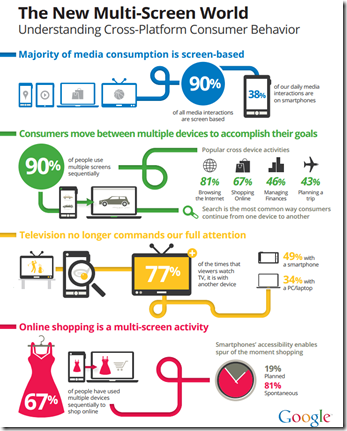
Quote from the article:
Two primary ways we multi-screen
In understanding what it means to multi-screen, we discovered two main modes of usage:
- Sequential screening where we move from one device to another to complete a single goal
- Simultaneous screening where we use multiple devices at the same time

We found that nine out of ten people use multiple screens sequentially and that smartphones are by far the most common starting point for sequential activity. So completing a task like booking a flight online or managing personal finances doesn’t just happen in one sitting on one device. In fact, 98% of sequential screeners move between devices in the same day to complete a task.
With simultaneous usage, we found that TV no longer commands our undivided attention, with 77% of viewers watching TV with another device in hand. In many cases people search on their devices, inspired by what they see on TV.
Through their data analysis and research it was also found that we could perhaps turn “spur-of-the-moment” activities into valuable opportunities. Turns out, that spur-of-the-moment impulse some of us get to “Google it” real quick accounts for about 80% of searches on smartphones with 44% of those searches being done for something productive. The same can be said for 52% of searches on a computer with roughly 43% of them being done for something productive.
See the full report here: http://googlemobileads.blogspot.co.uk/2012/08/navigating-new-multi-screen-world.html
Wednesday, December 19, 2012
Flickr vs Instagram – Instagram still king


As part of its mission to build up the brand and become valid again, Yahoo! is releasing some great apps recently. The Yahoo! Mail app has received some good reviews and the Flickr App seems to have been labeled by some folks across the net as an Instagram killer. Not so fast…
After using both apps fairly extensively, well as extensive as it gets in the case of Flickr and my one week with it, I have found many things that make Instagram better.
Vintage Cameras Look Cool!
First, I love that Instagram locks images to a square format. The idea at Instagram is that photos are supposed to be in the old square film format of yesteryear when vintage camera were all the rage. Although people continuously do it wrong, resulting in a fail pic with big black bars on the top and bottom, the square format does a lot in my opinion to force some artistic quality to the simplest pics. It requires the photographer to choose the most artistic sectional capture. This is more of a personal preference, and people who have been annoyed by the square requirement (“INSTAGRAM WON’T LET ME POST MY FULL SIZE PIC!!!”) will find this as a non-issue affecting neither performance or effectiveness.
Application Speed
On to the real stuff – the Flickr app is just too slow for me. The photo filters lag for a brief second and everything from loading a new pic to uploading the finalized pic just takes longer in Flickr. Also, since Instagram rides on Facebook for the most part, there is a much larger community on Instagram and my friends list is enough to keep me entertained for a few minutes when I check my feed. Flickr is a ghost-town on my feed. It’s like Google+ but with pics.
Social Network Tie-Ins
At least the Flickr app allows users to tie in Tumblr, Facebook, and Twitter accounts, there is no tie-in for Four Square and definitely not for Instagram. One of the pics I uploaded to Facebook from Flickr didn’t include my description and took away from the joke I was making.
Instagram FTW!
Overall I think the Flickr app has potential and the value of Instagram is diminishing with the release of the Flickr app and Twitter’s recent updates that allow photo filters to be applied to pics being tweeted. Even Facebook Camera is a usable alternative to Instagram and I think it’s only a matter of time before that site isn’t nearly as relevant as it has been over the last year.
What do you think? Have you had time with the new Flickr App? Does it work better than Instagram for you? Answer in the comments section below!
Thursday, December 6, 2012
Apple to Bring Manufacturing to the US?

While Tim Cook didn’t exactly say so, he did say this, “When I go into my living room and turn on the TV, I feel like I have gone backwards in time by 20 to 30 years,” Cook told Williams. “It’s an area of intense interest. I can’t say more than that.”
Apple will eventually bring manufacturing for more product lines to the US and this may be just the type of thing American citizens want to see their US based corporations do more of.
Read more at Forbes.com
Wednesday, December 5, 2012
5 Stats That Demonstrate Just How "Mobile" The World Has Become
 Not that it was ever a question, at least not in my private life, but there have been few questions about the reality of mobile computing and whether or not the concern is valid for support teams in enterprise IT departments.
In a report by respected venture capitalist Mary Meeker, she lays out several statistics about internet use. These are five of the most eye-opening stats that, in my mind, demonstrate just how upon us the mobile computing era actually is.
(Taken from Fobes.com)
1) Nearly half of all American kids want an iPad for Christmas.
According to research by Nielson, 48% of American children aged between 6 and 12 want Apple‘s iPad for Christmas, making it the most wished-for gift among the next generation of trend setters. In second place comes the Nintendo Wii U, and another 36% want the iPad Mini, followed by the iPod Touch and iPhone in fourth and fifth place. Sure kids still want a fixed games console, but it’s telling that a large proportion of them prefer the mobility of small devices that they can interact with, and take anywhere.
2) Global mobile traffic now represents roughly 13% of Internet traffic.
Just three years ago, in 2009, that statistic was at a measly 1%. It edged up to 4% in 2010, and it hit 13% in November 2012, according to StatCounter Global Stats. The reason: more people are buying things through their mobile phones, using them in the store to validate coupons, or social networking, or using GPS-enabled apps. Shopping is the big driving force, though. On Black Friday 2012, the day after Thanksgiving that marks that frenzied start to the Christmas shopping season in the U.S., 24% of all online shopping took place on mobiles and tablet devices, up from 6% in 2010. In India, mobile Internet traffic has already surpassed desktop traffic as of May 2012.
3) Nearly a third of all American adults own a tablet or e-reader.
Figures from the Pew Research Center show that more than 29% of U.S. adults already own a tablet device, Meeker pointed out. And just as startling: that number is up from 2% less than three years ago.
4) There are 5 billion mobile phone users in the world, but only 1 billion smartphone users.
The mobile revolution may seem well underway, but globally it’s only getting started. The number smartphone users is growing by 42% a year, globally, according to research from Morgan Stanley, where Meeker previously worked as an analyst. Most remarkable again is India. It already has 44 million smartphone subscribers, making it the fifth biggest smartphone market, but this represents just 4% of total subscribers. There’s huge room to grow.
5) Android is growing faster than anything.
Apple’s fastest growing mobile device is the iPad, with sales having grown three times faster than the iPhone in the last few quarters. But that’s nothing when you look at the adoption of Google’s Android platform, which has grown 6 times faster than the iPhone. To date handset makers have shipped well over 600 million smartphones that run on the Android operating system, while Apple has shipped around 100 million iPhones in the last four years.
For Meeker’s full, 88-slide presentation, click here.
Monday, December 3, 2012
Would you buy a $60 tablet?
And by 'decently' I mean, if I can do the core features I would demand from a 7" tablet and do them without frustrating me with lags, delays, crashes, and unresponsiveness, then I'm in.
This is quite an impressive spec list for any cheap device, let alone one with an approximate $60 price tag in India where it is being sold :
- 7 inch, 800 x 432 capacitive touchscreen
- Android 4.04 Ice Cream Sandwich
- 1GHz Cortex A8 ARMv7 CPU
- 512MB RAM, 4GB storage
- Wi-Fi (a version with GPRS cellular capability is also available)
- VGA front-facing camera
- Micro SD slot
- Power, micro-USB, and headphone connectors
I really don't know if this is going to be made available in America, or what the price will be if it does come. It's doubfull that this thing will ever be considered even a competitor in the tablet market, especially here in the US, but I think if it's successful in any way it can demonstrate a couple things:
1. A functional electronics device can be built for a very affordable price.
2. The market is no longer as dependent on specific hardware/software combinations to get what they want.
Monday, November 5, 2012
New Windows 8 Keyboard Shortcuts

New Keyboard Shortcuts for Windows 8
- Windows+first letters of app: Search your PC
- Ctrl+plus or Ctrl+minus: Zoom in or out
- Ctrl+scroll wheel: Zoom in or out
- Windows+C: Open the charms / Commands for Open App
- Windows+F: Open the Search charm to search files
- Windows+H: Open the Share charm
- Windows+I: Open the Settings charm
- Windows+J: Switch the main app and snapped app
- Windows+K: Open the Devices charm
- Windows+O: Lock the screen orientation (portrait or landscape)
- Windows+Q: Open the Search charm to search apps
- Windows+W: Open the Search charm to search settings
- Windows+Z: Show the commands available in the app
- Windows+spacebar: Switch input language and keyboard layout
- Windows+Ctrl+spacebar: Change to a previously selected input
- Windows+Tab: Cycle through open apps (except desktop apps)
- Windows+Ctrl+Tab: Cycle through open apps (except desktop apps) and snaps them as they are cycled
- Windows+Shift+Tab: Cycle through open apps (except desktop apps) in reverse order
- Windows+PgUp: Move the Start screen and apps to the monitor on the left (Apps in the desktop won’t change monitors)
- Windows+PgDown: Move the Start screen and apps to the monitor on the right (Apps in the desktop won’t change monitors)
- Windows+period: Snaps an app to the right
- Windows+Shift+period: Snaps an app to the left
- Esc: Stop or exit the current task
Frequently Used General Windows Shortcuts
- ALt+F4: Close open program or app
- Alt+Esc: Cycle through items by order of being opened
- Alt+Enter: Display Properties of a selected item
- Alt+Left Arrow: Back
- Alt+Right Arrow: Forward
- Alt+Tab: Switch Between Open Apps
- Ctrl+C: Copy
- Ctrl+X: Cut
- Ctrl+V: Paste
- Ctrl+Y: Redo
- Ctrl+Z: Undo
- Ctrl+Shift+Esc: Task Manager
- Ctrl+Alt+Delete: Vulcan Nerve Pinch
- PrintScr: Copy contents of desktop to clipboard as BMP image
- Windows+E: Open My Computer
- Windows+Up Arrow: Maximize Current Window
- Windows+Down Arrow: Minimize Current Window
- Windows+Left Arrow: Maximize Desktop program to left side of screen
- Windows+Right Arrow: Maximize Desktop program to right side of screen
Tuesday, October 23, 2012
Dell Releases New Windows 8 Products
Looks like Dell is ready to go for Windows 8. I just don’t know if it looks like these will be good or not. With Dell’s presence in the enterprise though, these might be just what IT organizations are looking for to pacify it’s “consumerized” group of employees.
First up, the XPS 12:


This interesting guy here weighs in at 3.35 lbs. It has two USB 3.0 slots, a MiniDisplay port, 3.5 mm headphone jack and dual speakers. The unique part about it is that the screen flips over, allowing the XPS 12 to turn into an oversized slate. The touchscreen is enticing, but the design is questionable. I can see worn out and broken hinges being a possible issue. Also, the reviewers at Engadget seem to think the trackpad is a little flaky for their liking and not as smooth as it could be when using it in the desktop environment.
They sum it up here:
“Though the XPS 12's size and weight make it a bit unwieldy as a substitute tablet, it's still a compelling option if you're in the market for a high-end, touch-enabled Ultrabook. The XPS 12 is almost as light as other Ultrabooks, with a premium industrial design, comfortable keyboard, gorgeous 1080p screen and a super-fast boot-up time. The biggest drawbacks seem to be the flaky trackpad and the relatively short battery life, which doesn't improve much when you dim that 400-nit display. We'll be curious to see how other touchscreen Ultrabooks fare, particularly those with similarly versatile designs. In the meantime, though, the XPS 12 represents a solid start for this new wave of Windows 8 shape-shifters.”
Dell is also releasing a wireless touchpad. I have never desired using a touchpad on a PC. On my MacBook Air, I actually prefer using the touchpad and purchased Apple’s Bluetooth touchpad to go with it. I’m not sure how successful, or even desirable this Dell offering will be.


And now introducing the Dell XPS 10 Windows 8 RT tablet.


The XPS 10 Windows 8 RT tablet is Dell’s RT offering. This is not the fully functional Windows 8 OS but a mobile tuned version limited to apps in the Windows Marketplace. This tablet, like most others becoming available, has a optional keyboard dock that turns it into a pseudo laptop of sorts. Dell’s Windows 8 RT goes on presale for $499 for a 32GB tablet. Without the optional keyboard, that drops down to $399.
Tuesday, October 16, 2012
51% of iPhone Accidents Happen Around the Home–Infographic
If you’ve ever fallen victim to a chipped corner, a scuffed up bezel, and the all-too-glorious shattered screen, then you might have also been in one of the situations below.
Here’s a breakdown of how iPhone damage happens at home according to the good folks over at extended-warranty provider Squaretrade.com.

Microsoft Releases Surface Tablet RT Pricing

There are details on the Microsoft.com website and the Surface RT tablet starts at $499 for 32 gigs without a Touch Cover and $599 with a Black Touch Cover. This is right in line with iPad pricing. A surface tablet without the Touch Cover comes in even cheaper than Apple's 32 gig iPad which starts at $599. For Apple's price, consumers can get a 32 gig Surface RT with Microsoft's new Touch Cover included.
The announcement of Surface pricing marks the beginning of Microsoft officially being a player and signifies an important step into the mobility market.

Surface Tablet RT is releasing October 26th, 2012 and you can go check out the "Help me choose” page.
For those who like toys, visit the Pre-order page and pick one up!!
Wednesday, October 3, 2012
Watch YouTube TV!
YouTube has silently rolled out a new feature that can be accessed simply by going to YouTube.com/TV. This interface is intended to provide simple navigation for a big screen or TV. Using the keyboard to navigate up and down and shortcut keys like S for search and G for home, this interface is definitely slick looking, simple, and delivers just the content.

After going to youtube.com/tv users can also add a mobile device to serve as a remote. It feels more like a second screen to me, and this is where playlists, subscriptions, video info, and play queue creation takes place; leaving the big screen to display just the content. It is not limited to a TV and the interface can used on any display with access to YouTube.

First go to Login & Settings on Youtube.com/TV and choose the option to pair a device. A pairing code will be generated…

Then go to to Youtube.com/activate on the device and enter the code. Now you can select YouTube videos to watch on the “TV screen” that was just paired. There’s also a YouTube Remote app available for Android
The new Youtube.com/TV interface looks to replace YouTube.com/Leanback, a similar service/interface, while providing a more streamlined, minimalistic approach. From the looks of things, YouTube may be trying to convert the Leanback service to the TV service. Either way, this is a great way to watch YouTube.

Wednesday, September 19, 2012
Marissa Mayer Arming All Yahoo Employees iPhone 5’s

Through the program, employees will have a choice of phones (along with data and voice plans) that includes the iPhone 5, Samsung Galaxy S3, HTC One X, HTC Evo 4G LTE, or Nokia Lumia 920. Notice anyone missing from the list? It’s just not going to get better for Blackberry is it….
According to a Yahoo memo, the idea is for Yahoo employees to use similar devices to what their users have so they can think and work like a majority of their users do. “People are happy,” Yahoo says. The program will cost Yahoo a few million dollars, but if the benefit will be a more informed and motivated workforce then Yahoo is on the right track to turn-around.
Read the article from businessinsider here: http://www.businessinsider.com/marissa-mayer-just-gave-every-yahoo-employee-an-iphone-5-2012-9#ixzz26w6RQjcZ
Experts say iPhone matches Blackberry in enterprise security

As I wrote about last October, one of the biggest reasons (aside from the physical keyboard) people allow themselves to suffer with miniture screen sizes and a sore lack of functionality via apps is the security a Blackberry environment can provide. Blackberry Enterprise Server (BES) has always provided superior management, tracking, policy enforcement, and central management for a fleet of Blackberry devices. Now through many efforts of companies like Afaria, MobileIron, and Maas360 the Mobile Device Management (MDM) options for organizations allow for fleets of iOS, Android, and other devices to be managed just the same as a BES can – and without the hefty price tag RIM charges.
IT directors are seeing that there are no longer any reasons to limit employees to a Blackberry. Organizations ranging in fields from accounting shops with 2,500 employees to government agencies with over 12,000 employees are simply ditching Blackberry for something better and just as manageable.
With the iPhone 5 coming out this week, iPhone 4S is dropping to $99 and iPhone 4 can be found for free on some carriers. So now even the price of a device is on par, even better, than Blackberry.
A RIM spokesperson said the company was “unable to provide a comment” (unable or unwilling?) Oh well…at least RIM showed off…ERRRR, leaked the new Blackberry 10 recently…
Wednesday, September 12, 2012
Introducing iPhone 5
http://www.engadget.com/2012/09/12/iphone-5-officially-announced/
- Thinner, longer, and 4” screen
- A6 processor
- iOS6
- Better camera (including panoramic mode)
- LTE 4G
- Turn by turn navigation
- 720p front facing camera
- Lightning port (new USB connector)
- Starting at $199 for 16 Gig


iPhone 5 vs iPhone 4s

iPhone 4 for free and iPhone 4s for $99
http://www.engadget.com/2012/09/12/apple-discounts-iphone-4s-$99/