Showing posts with label Phones. Show all posts

Monday, September 30, 2013

iOS7 Improve Battery Life Without Turning ‘Everything’ Off.

I’m personally not a fan of turning off key features to save battery life. That’s like not driving to save gas, or unplugging your internet to avoid viruses. Well…maybe it’s not that extreme, but I just don’t know why we would want to spend money on this bad@$$ phone just to decide that it’s best to turn off some of the best features.

Regardless, battery life is very important to lots of people. And until someone makes a battery that doesn’t die, we’ll all do what we can to get around our battery woes.

Here’s a quick list I put together of some things you can do to improve battery life a little bit with iOS 7.

1. Turn off Wi-Fi searching

Wifi capable devices are constantly searching for Wifi networks to connect to. This is not an exception for the iPhone as the device is always trying to find a Wifi network to connect to. You’ve no doubt seen the pesky pop up informing you of “Networks in range”.

Go into Settings > Wifi:

Turn off the switch to “Ask to Join Networks”

image

A quick note on this: Turning this off will disable the “open network” messages from popping up. I am not certain that this “stops” the device from actively searching for wireless networks though.

My recommendation for managing Wifi: Turn wifi OFF when you know you will not be connected to a Wifi network. Turn it back on when you are in Wifi range. This is super-simple now and done with a tap of one button from the new control center.

Remember this though: Absolutely use Wifi whenever you can!!!  Using Wifi always saves battery over using cellular data.

2. Fine-tune location services

Location services are what iOS uses to get information like the weather, navigation/maps/GPS data, traffic information, photo geodata, geo-reminders, and other location specific information. Disabling it completely results in a huge disconnect from useful data and features. Instead of turning it off altogether, just fine-tune the apps that truly need location services.

Go to Settings > Privacy > Location Services

This lists all applications currently installed that use location services. Turn off anything that does not need to know location.

BEWARE! Turning off location services can make an application stop working. For example, turning off location services on a Run-tracking app will stop that app from being able to track your route.

My advice is to leave apps on if they are for: Weather, social networking, navigation, photo taking, and any apps that use locations to trigger other events (i.e. walk-in coupons, shopping apps, etc…)

3. Fine-tune Background App Refresh

iOS 7 expanded background app functionality. In plain English, this basically  means that essentially any app can function when it’s not on your screen. Facebook might update your feed, AP Mobile and CNN might update the main news stories page, your task list might refresh itself looking for status. All these tasks are great when you go into the app and the latest info is right there. However….

It uses the battery.

Turn off all background refreshes for apps you do not care to have “up-to-the-minute” refreshes on. If you’re perfectly fine with refreshing Evernote when you open it as opposed to letting it update on it’s own, then turn off background refresh for it. If you don’t mind the brief 30 seconds it takes to refresh your Facebook feed when you launch the app, turn off background updates. Don’t care about having the latest weather report ‘instantly’ when launching the app? Turn off background refresh.

image

4. Turn off parallax/motion effects

This may have the least affect on the OS, but if you are not a fan of the motion effects of iOS 7, just turn it off. You may also save some battery juice in the process.

Go to: Settings > General > Accessibility > turn “Reduce Motion” to “On”.

image

Tuesday, October 25, 2011

Why do people still use Blackberry?

clip_image002

Keyboards, security, and IT requirements seem to top the list.

According to an article written by Jon Brodkin of Arstechnica.com, there are a few reasons people still use Blackberry and will likely continue to use Blackberry for some time to come. There are still 70 million Blackberry users, so to anticipate them going away soon is a bit unrealistic. The market share for Blackberry has fallen from 18.7% to 11.7% in the second quarter alone. Despite their financial problems, service problems, dying investor confidence, the consumerization of IT, and lack of any new device capable of the advanced user experience iOS and Android users get, Blackberry still has some very strong things going their way.

“If it were up to IT managers there would still be only one solution out there and it would be called Blackberry”, says Dan Croft, CEO of Mission Critical Wireless, which helps businesses manage mobile deployments. What is being seen is not a removal of RIM from enterprises, but an addition of non-Blackberry devices. Even though iOS and Android support encryption, ActiveSync security policies, remote wipes, and tracking services, RIM security is more robust and easier to implement – especially after a company invests in a BES server. All Blackberry communications are routed through RIM’s Network Operations Center which adds a layer of encryption and tracking/logging of Blackberry communications – sometimes essential for corporations who need to comply with regulations around archiving such as those included with Sarbanes Oxley. But this also presents another layer for failure as seen with Blackberry’s global outage earlier this month.

There are also questions around the iOS and Android platform when it comes to securing the contents of a device. Being able to install apps can present a problem when users have their way with Dropbox, Box.net, and other “cloud” storage solutions. The legal department in most enterprises (Newmont included) usually are completely against putting company documents on a server they have no control over. Failing to present documents during an audit because the company did not know where they were stored could be a legal nightmare.

The article goes on to mention some other things like the desire for hard keyboards and the fact that there are people who use Blackberry simply because they have no choice, their IT department forces them into one device only with little regard to the alleged boost in efficiency that iOS and Android offers.

Read the article here: Why people still use BlackBerry: keyboards, security, and IT requirements – 10/24/2011

Friday, October 21, 2011

New features in iOS 5


clip_image002
Pretty long list here:

  1. Notification Center: New Notification System
  2. Improved app notifications at the top
  3. Lock screen notifications. Swipe will open related app.
  4. Notification options to choose for each app.
  5. Notification sorting by app, time etc.
  6. iMessage: Text messaging between iOS devices over Wi-Fi or 3G (Similar to WhatsApp)
  7. Newstand: Similar to iBooks to store, auto-download magazine subscriptions & new issues.
  8. Reminders: A list of reminders with Geo-fence integrated with Calendar app
  9. Twitter Integration: Log in to Twitter from settings once and Tweet anything from Safri, Photos, YouTube etc. Similar to login & sharing used by Mail.app
  10. AirPlay Mirroring for iPad 2: Duplicate the iPad screen on television wirelessly
  11. iCloud integration: A new free service with more than 5GB data to be shared between iOS devices
  12. Open Camera.app from lock screen: Double tapping on Home button will open the Camera.app from lock screen
  13. Take pictures from lock screen: Volume up button can be used to take pictures
  14. Camera Grid: For more precise focus and accurate photography. This feature was available on Camera+ app
  15. Camera Zoom: Pinch-to-zoom Gesture like Photos.app on Camera.app
  16. One tap Auto Focus and Auto Exposure
  17. Lock Auto Exposure & Auto Focus for consistency.
  18. Swipe Left to open camera roll
  19. Crop Photos: Not available on 3GS
  20. Enhance Color tones of photos: Not available on 3GS
  21. Rotate Photos:
  22. Red-eye removal: Remove, correct Red-eye within Photos.app
  23. Photo Stream via iCloud over all your iOS devices
  24. Organize photos within Camera Roll
  25. Tabbed Browsing in Safari: For iPad only
  26. Safari Reader: Like RSS reader
  27. Safari Reading List: Save web pages for offline reading
  28. Improved Performance: Like it was enhanced in 4.3.3
  29. Private Browsing: Similar to Firefox / Incognito on Chrome.
  30. Website specific data can be deleted
  31. Cut the cord: Activate and setup iOS device without a Mac or PC
  32. Over-The-Air (OTA) iOS Software Updates: Again, no need of a computer & cord
  33. Delta Software Updates: Upgrade only changed files. No need to download & install entire OS. (Similar to WordPress!)
  34. Wi-Fi Sync: Sync iOS device with PC or Mac over Wi-Fi
  35. Backup and Restore from iCloud account
  36. Sync Exchange tasks
  37. Downloads: See a list of downloaded apps from App Store from any of your iOS device
  38. Rich Text Formatting for Composing Mail (Bold, Italics, Underline, etc.)
  39. Improved offline support for Mail.app
  40. Indentation Control
  41. Drag-able email addresses: Drag, arrange email addresses in To, CC, BCC fields
  42. Improved mail search: Full content search in Mail
  43. Flag Emails
  44. S/MIME Security
  45. Profile picture for Game Center
  46. Friend recommendations for Game Center
  47. Games recommendation
  48. Friends-of-friends list
  49. App Store in Game Center: App store integrated within Game Center to find & buy new Apps / Games
  50. New Achievements like Perks, Points
  51. Play turn-based games within Game Center
  52. Swipe-Up with 4-5 fingers for multitasking bar (iPad only)
  53. Swipe-Left or Swipe-Right with 4-5 fingers to switch between running apps (iPad only)
  54. Pinch with 4-5 fingers for the home screen (iPad only)
  55. New Split keyboard: For easier typing on iPad
  56. New Keyboard Shortcuts (Not sure what it is)
  57. Emoji Emoticons: Emoticons like we see in IMs now for iOS devices. Mostly with iMessage!
  58. LED Flash for incoming calls and notifications for better accessibility
  59. Custom vibration for incoming calls for better accessibility
  60. VoiceOver improvements including custom element labeling
  61. Custom tones for Calendar events
  62. Custom tone for Received Mail
  63. Custom tone for Sent mail
  64. Custom tone for Voice-mail
  65. Year view on Calendar: iPad only
  66. Week view on Calendar: For iPhone & iPod
  67. New Music App: Redesigned only for iPad
  68. Music & Video: Two separate apps for iPhone (Instead of Video inside iPod app)
  69. Scroll for long song titles
  70. Song description: Tap & hold on a song title for description
  71. Smart Playlists: Sync smart playlists from iTunes.
  72. Weather Forecasts updates hourly
  73. On-location Weather: Determines current location. Custom locations can be added/
  74. Alternate routes in Maps
  75. Print Maps: Print location, direction maps
  76. Twitter Pictures: Use Twitter pictures for contacts with integrated Twitter
  77. Auto Download in background: Newstand issues, apps can be downloaded in background once subscribed.
  78. Sync in background: Now possible to use iOS device while it is still syncing in background
  79. Links in background: Safari links, iTunes links can be opened in background
  80. Space usage: Determine space used by each app, supported file types under settings
  81. iCloud usage: Determine space used on iCloud under settings
  82. Change device name: Change iOS device name on-the-go via settings
  83. Some GUI Improvements
  84. Personal Dictionary: Create & store own words for re-use
  85. Built-in Dictionary: Built-in dictionary app
  86. iTunes Tone Store: Choose, Buy, Install custom tones
  87. Improved FaceTime video quality
  88. VoiceOver Item Chooser
  89. Speak Text:Speak text based on selection
  90. Delete recent calls: Delete single or one-by-one recent call list
  91. Delete app data: Delete saved games, saved data for specific apps / games
  92. Time mid-call invitation alerts
  93. Download Multiple Apps: Now its possible to download and install multiple apps instead of one-by-one.
  94. Delete songs: Check to Delete songs / playlists on iOS device (It’s already possible I guess in 4.3.3 or its here on my phone only for me? )
  95. New Keyboard Shortcuts: Type OMG and it will type Oh My God.
  96. Custom Text Tones: Custom SMS tones. (Yeah, I think it’s there)
  97. Auto Sync backup: It takes backup of the file on the device. Hence restoring from scratch is made easy. No need to grab all apps one-by-one. Saves lot of time.
  98. ‘Install’ link instead of Price if the app is already bought.
  99. Silent Switch: Shows volume level along with the Bell icon while switching back from Silent to Ringer (Currently it shows only the Bell icon)
  100. Hotmail accounts have new icons & folders
  101. Sync events, contacts, notes with predefined accounts under Mail.app (Like Hotmail, Gmail etc)
  102. Marked Apps: All apps that are downloaded on iOS device for your account are marked as FREE (Free to download if they’re & free to download because you’ve already purchased them)
  103. Arabic language support for VoiceOver
  104. Icon Badges: Option to turn ON or OFF icon badges for apps. (Red circle with update)
  105. Accessible input for mobility
  106. Assistive Touch Gestures: Allows us to use iPhone with adaptive accessories while controlling touch sensitivity.
  107. FaceTime over 3G: Yes, it is now possible. Not yet available for developers though.
  108. Unsecured call notifications: I am not sure why does this prompt for confirmation for calls saying network is not encrypted! (Is this a feature or incomplete program?)
  109. Mid-call Invitation Alert: If the phone is busy, we can still receive a placed conference call (Description is my interpretation)
  110. Free @me.com email address: Yes. With iCloud integration, all iOS 5 users will get @me.com email ID
  111. Custom Gestures: Create and save custom gestures. Mainly for motor-disables persons for use with AssistiveTouch accessories
  112. Swipe-Left can let you browse through day-view one-by-one in Calendar
  113. FaceTime without Sim card: FaceTime can now be activated and used either via a phone number or email address (Apple ID)
  114. Unknown Caller details: When received a call from number that is not on contacts – the display also shows city name associated with the area code. Currently it shows in recent calls list only (I think I have seen this feature before on 4.2.1. Did you? )
  115. Vibrate Alert for sent & received emails (What is they come-and-go the same time? Confusing?)
  116. Real-TIme stock updates
  117. Multiple Mark Read: Can now select & mark multiple emails as read.
  118. Pause Timer: It’s possible to pause the Timer instead of ‘Cancel’
  119. New German Keyboard: Easy access to  Germanic umlaut
  120. 1080p Playback support for iPad. (Awesome)
  121. Social Networking Integration: Facebook, Flickr, LinkedIn, MySpace along with Twitter (Options under Settings.app but not sure if integrated throughout the OS like Twitter)
  122. Headphone Balance: Option to choose Left & Right balance for headphones under Accessibility
  123. Mono audio option for headphones under accessibility (except to choose balance as mentioned above)
  124. Cellular Network for App Store: Option to Enable or Disable using Cellular Network (GPRS, 3G) to download apps from the App Store. (This is excellent!)
  125. Disable In-App Purchase: Ability to completely disable In-App purchases
  126. iTunes Password Prompt: It is now possible to set frequency for iTunes Password prompt to appear.
  127. Storage Usage Clean Up: We can not only see what files have taken up the space but we can empty that space with single wipe like Apps, Game’s saved data, Music, Videos etc.
  128. Equalizer Presets: These are now more BASS oriented (Most likely)
  129. Improved Sound Check for music
  130. RSA ID is now available when setting up VPN. (Thanks @jaytrixz for this update). This is for performing two-factor authentication for a user to a network resource.
  131. Folders for Mail: Yes. Possible for any allowed mail account including new Hotmail. (I mentioned about Hotmail above but this is new feature for all accounts & thanks @Karl for this info)
  132. Hide Keyboard: Hide (Dismiss) keyboard button whenever necessary. (This is for iPad only. Not for iPhone. Confirmed)
  133. Find My iPhone: This is available as a part of iCloud integration with an option to disable it. (Thanks Michael for confirmation)
  134. Scrolling Titles for YouTube videos
  135. HD YouTube video if connected to 3G
  136. Option to disable HQ (HD) video playback over 3G
  137. Take pictures using headphone remote: If you have headphone with remote them it is possible to take picture using Volume UP button. (Very useful if you have a tripod. Please confirm if anyone saw this!)
  138. Animated GIF image support for iMessage. Does not animate in Photos.app
  139. Hold and drag events from within different dates or time
  140. Tapping and holding back button in Safari will show-up visited website history (iPad only)
  141. Current time on Calendar if in landscape mode
  142. New voices for Voice-Over
  143. Option to display Stock & Weather widgets in Notification Center
  144. Add family relations to contacts.
  145. Restrictions with password required for purchases if enabled
  146. Enable / Disable option for voice-dial if the phone is set to security with pass-code lock.
  147. Purchase history on app store
  148. Automatically set time for iPod Touches
  149. Auto Correct & Spell Check are independent options.
  150. Broadcast song information on devices (like car stereo) when connected over Bluetooth
  151. New keyboard with prominent #(hash-tag) and @ (mention) buttons for Twitter app like we have a prominent ‘.com’ button for Safari address bar.
  152. iPod app renamed to Music: How could I missed it writing here! It’s there on a screenshot on other post here
  153. Enhanced Mail.app even in offline mode and sync back when online (like for deleted emails)
  154. Help center: Learn more about every option under settings app to explore more about it (like Nokia has?)
  155. New notification alerts within mail app if you forgot to write a subject line (Similar to Gmail!)
  156. Hourly Weather Forecasts: Tap the current day and it will display hour-by-hour weather forecast. (This is separate from hourly weather update mentioned above)
  157. En dash (–): Tap and hold hyphen (-) key to see & insert En dash. Em dash is already there.  (Know more here about En & Em Dash)
  158. Third-party Cables: Support for almost all third-party TV-out cables. No need to download Resupported from Cydia. This would be one of the major features if true. (Can someone without jailbroken iPhone confirm this?)
  159. Choose Notification Type: Banner notifications or the classic pop-up notifications (for each app)
  160. Mail Sidebar: Can be swiped in or out
  161. Install Twitter from Settings app (Twitter integration as one feature each? see below points)
  162. Tweet Location: in Maps
  163. Tweet Picture: from the camera roll
  164. Tweet Website URL: from Safari
  165. Tweet Video: from YouTube
  166. Backup homescreen layout on iCloud (Please confirm)
  167. Backup app data on iCloud (Like game saves etc)
  168. Backup purchased music, apps, and books on iCloud
  169. Backup SMS and MMS
  170. Backup ringtone(s)
  171. Backup contacts
  172. Schedule daily OTA (Over the air) iCloud backup
  173. Message / iMessage: Repeat alerts up to 10 times
  174. iOS crash reports to Apple with options: Send automatically or Don’t send.
  175. Nuance Speech to Text: Not available in current beta but the most anticipated feature in final release. See concept here.
  176. Sync bookmarks, highlight from iBooks across devices
  177. iMessages show a blue colored bubble to easily distinguish
  178. Group messaging in iMessage
  179. Delivery Reports
  180. Read receipts for iMessage (enable from Settings)
  181. See if other person is typing in iMessage (like in IMs)
  182. Add Social Media info in to contacts
  183. New rounded toggle switch
  184. New separate Video app & icon
  185. Nitro JavaScript speed improvements for Web Apps
  186. iMessage will be sent as a text message in case iMessage is not available
  187. Custom vibration for each contact so each pattern can let know who’s calling
  188. New ‘Message’ option for iPod Touch under settings to use iMessage using an email ID
  189. Setup AirPort device
  190. Maximum recent email messages limit to 1000 instead of 200
  191. Create & manage photo albums within Photos.app on device itself. (How did I miss this before? Thanks Joaquin for letting me know.)
  192. SMS tones sound like they have been shortened than those were provided on iPhone 4 (Anyone felt it that way?)
  193. While reading an email – swiping right would open a list of messages and swipe left would bring back to the open email message again. (Like if you’re reading an email from Inbox, it will take you to Inbox)
  194. If you have multiple email accounts configured in Mail app – swipe left or right from one’s mailboxes folder list, it will take you to another account’s mailboxes. (from Google Mail to Hotmail or back)
  195. iTunes App: Support for match & find songs based on previous song purchases.
  196. Free upgrade to 256 kbps bit-rate for purchased songs if backing up on iCloud
  197. Support for multiple audio devices (Could not understand exact meaning of this)
  198. Mirror iPhone 4 on Apple TV
  199. Skip tracks by swiping left – right on album art itself when not on lock screen (iPad only)
  200. The name of the person that respond, appears in small light blue text directly above the response when SMS is sent to a group. (Thanks Melvin Baskin for emailing this)
  201. Drag Keyboard on iPad: Drag keyboard up / down the screen wherever it is needed. It works for split keyboard as well.

Friday, March 19, 2010

BlackBerry OS 3.0 Leaked?

Posted by Engadget on Mar 19th, 2010

This is completely unverified and I’m not sure if this is at all real or just someone design school joker trying to trick the tech community. BBLeaks claims that they are “highly regarded as real from one of our best connects.”

Who knows, but it would be a cool change up for BlackBerry whose OS just seems real out dated.

Leaked Images of New RIM Device


BlackBerry Slider? The next Bold maybe? The next Storm?

Here are some leaked images of a new slider type device from RIM. No word on what the device is or when it will be available but clearly they took a cue from Palm on the design.

I’m thinking we can expect a touchscreen and BlackBerry OS 6.0 to be on it.

Read More –>

Windows 7 Series Phone Straight Steals Idea From Palm Pre Ad


We all know Microsoft has a reputation of stealing ideas. Weather this is true or not really depends on who you talk to. This is just blatant though.

I guess maybe it’s possible that this is just coincidental but Palm’s ad came out first so they get the credit.

Check out the two ads and judge for yourself:

Here is the Palm Pre ad:


And the Series 7 ad:

Thursday, February 25, 2010

Sprint confirms Pre and Pixi webOS 1.4 update coming tomorrow -- Engadget


Sprint confirms Pre and Pixi webOS 1.4 update coming tomorrow -- Engadget


According to Engadget, Sprint has confirmed the release of WebOS for tomorrow evening. I can't wait! I'm most looking forward to Flash capability and video recording.

Go Palm!

Tuesday, November 17, 2009

Palm Pixi Arrives


Palm releases its second WebOS device, the Palm Pixi, and again it's exclusively on Sprint: The Now Network.

The Pixi has a cool form factor and is slimmer than the Palm Pre. The obvious difference between the two is the lack of a slide out keyboard on the Pixi. Instead, the device is all in one with the screen and keyboard, similar to a Blackberry or Treo. According to Palm, the Pixi is aimed at a different audience than the Pre. They're going for a younger audience with less money on hand and less need for productivity functionality. For starters, WiFi is no included with this device like the Pre. You could say that with Sprint's EVDO data speeds, you really don't need the WiFi, but it still seems silly to take it out. The camera is 1 megapixel lower than the 3MP Pre, the screen is a little smaller, and the processor is a little slower as well. All this to keep costs down.

The Pixi is obviously not intended for every user, especially not for those who already have a Palm Pre. It does introduce another WebOS device to the market though, and at a price of $100 from Sprint, it's quite affordable. Looks like Walmart is selling the Pixi for $50:


UPDATE: Looks like Amazon is letting it go for $25!!
Via http://Twitter.com/engadget: Palm Pixi one step closer to free, now $25 on Amazon http://bit.ly/2jbq4R

For a full review of the Palm Pixi, head on over to Pre|central.net and check out their write up. Videos are included as well.

Thursday, October 15, 2009

T Mobile Looses Sidekick User Data


Ouch…so apparently life on a cloud isn't too pleasant. The T-Mobile Sidekick works on cloud computing. This means that all user data is stored on the T-Mobile servers and data is synchronized whenever the phone is rebooted. Recently T-Mobile lost all its customer data in a catastrophic server crash – and here's the best part – they had no backup system.

Early word was that T-Mobile could not recover any of the data and they encouraged users not to reboot their phone. At current time Microsoft has said that they can recover most, if not all the data, for users. T-Mobile now seems to be confident that they can recover all the data and they are offering $100 to anyone whose data cannot be recovered.

Class action lawsuits have already been filed for people who suffered losses. One lawsuit claims that T-Mobile misled customers into thinking their data was safe. Another lawsuit says that the T-Mobile's advertising did not disclose the fact that T-Mobile had no backup solution for this data. Sidekick user Maureen Thompson alleges in a lawsuit filed in federal district court in San Jose, California that one of the major selling points of Sidekicks was that users always had access to their personal data, and that such data would and could properly be entrusted to the defendants to maintain and retain, safely, securely and always available.

Thompson claims she "suffered a complete and catastrophic loss of all data", including appointments and contacts. Her daughter, an aspiring model and singer-songwriter, lost photos and lyrics she wrote that she had stored on the device.

Thompson's lawyer, Michael Aschenbrener of Kamber Edelson claims that Thompson and her daughter chose Sidekick to avoid the very scenario that occurred.

It looks as though T-Mobile has been working around the clock to get data restored and it now appears that minimal users will suffer data loss (whatever "minimal" means). I'd be terrified if I were a Sidekick user.

Wednesday, October 7, 2009

10 Most Brilliant Products of 2009: Palm Pre

Popular Mechanics releases its 10 Most Brilliant Products of 2009 and the Palm Pre made the list.

"Most breakthrough innovations make their greatest contributions when they become products people can buy. Here, Popular Mechanics awards the top 10 most brilliant gadgets, tools and toys that you can buy in 2009."

Published in the November 2009 issue.

http://www.popularmechanics.com/technology/upgrade/4332407.html

Here's what they had to say about the Pre:

The Palm Pre (which costs $200 with a contract from Sprint) doesn't break ground with any one engineering advance. Instead, it sets a new standard by putting all the best available technologies together. Most cellphones—even high-end ones—excel at some tasks, while utterly ignoring others. The Palm Pre's features read like a gadget geek's wish list: optional inductive charging, a full keyboard, the ability to sync with iTunes—and it can run multiple applications at once. Sometimes more is more. 

Way to go Palm! If you haven't heard me say it yet, I really like my Pre! I'm glad that the phone is getting some of the recognition it deserves. Palm hit it out of the park with WebOS and as time goes on, things just keep getting better, more developer support, which leads to more apps, and more functionality brought to the phone via over the air updates. Oh and just to be fair, the price of a new Pre is $149.99 now, not $200.

Monday, September 28, 2009

Palm Pre WebOS 1.2 Update Available Today

For those of you without a Pre, this means nothing. For the rest of you, the latest WebOS update is finally here. This adds a few things that I'm glad are here like copy and paste within applications and an updated App Catalog. Just go to "Updates" from your Pre's launcher and download the approx. 74Mb update.

webOS 1.2.0

Version information

  • Version: webOS 1.2.0
  • Release date: 28 September 2009

New applications

NONE

Feature changes to existing applications

Amazon MP3

  • Songs can now be purchased from Amazon MP3 over a phone network connection. A Wi-Fi connection is no longer required.

App Catalog

  • In preparation for e-commerce in the App Catalog, to purchase apps, you can enter credit card information by selecting Preferences & Accounts from the application menu in App Catalog. Credit card information is stored with the Palm profile, not on the phone. You can choose whether you need to enter their Palm profile password each time you make a purchase, or for the first purchase in any four-hour window.
  • If you want to reinstall a purchased application you previously deleted, you can open App Catalog, search for the application, tap the app name, and tap Download again for free. You do not need to pay for the application again.
  • A new Share button enables you to send a link to the app page in an email or text message.You can select whether to enter comments anonymously, using your first and last name, or using your first initial and last name.
  • You must accept an end-user license agreement to purchase apps.

Backup

  • Web browser bookmarks are now backed up to your Palm profile. After a restart or partial/full erase, the bookmark is restored in Web when you go to the web page.

Bluetooth

  • If you are on the phone, get in a car with a previously paired car kit, and turn on the car, a notification appears asking whether you want to continue talking directly into the phone, or transfer the call to the car kit. Previously, the call was automatically transferred to the car kit.
  • The types of car kits to which contacts can be transferred has been increased. You can transfer contacts to Toyota and Lexus car kits.
  • You can make a Bluetooth connection to a computer even if the computer's Bluetooth device name field is blank.

Calendar

  • On the event details screen, the Map Location application menu item is now called Event Location and has two submenu options: Show On Map, which displays the location in Google Maps, and Get Directions, which provides directions from the current location in Google Maps.
  • The options for changing a calendar's display color and choosing whether to show or hide a calendar in All Calendars view are now accessed by opening the application menu > Preferences & Accounts > Calendar View Options, or by tapping the Calendar View Options list item in the list where you switch between All Calendars and an individual calendar.
  • If you tap Snooze on a calendar event notification, the notification no longer reappears after the event end time.
  • If a calendar note contains a phone number, you can tap the number to dial it.
  • In Day view, you can press and hold the orange key/Option and tap an event to delete the event. Options displayed include deleting just this event or deleting the whole series for recurring events.
  • Calendar now recognizes the 7th day of a given month as the first Monday/Tuesday/etc. of that month, not the second. If you choose a repeat option for an event on the 7th, the list correctly shows the option Monthly on 1st [day]. Previously, the repeat list for an event on the 7th of the month showed the option Monthly on 2nd [day].
  • Untimed events included in calendar data migration from your desktop now appear on the correct date in Calendar.
  • If you create an all-day event and then switch the phone's time zone, the event continues to display correctly.
  • When you select a month for a birthday, the month displays correctly.
  • Responses to meeting invitations are correctly sent back to the organizer. If the organizer of an event requests not to receive responses, responses are not sent to the organizer.

Clock

  • The volume of alarms set in clock matches the ringtone volume, not the system sounds volume.

Contacts

  • On a contact details screen, a Send Contact option is available on the application menu, with options to send the contact to a car kit or send it as a vCard attachment to an email or multimedia message.
  • On a contact details screen, a Copy All option is now available on the Edit submenu in the application menu. Selecting this option copies the entire contents of the contact entry as plain text.
  • LinkedIn is now available as an online account in Contacts. As with Facebook, a LinkedIn account set up on the phone enables you to download contacts from that account. LinkedIn contacts cannot be created or edited in Contacts.
  • If a contact contains an instant messaging (IM) address, the contact is linked to the IM account buddy entry.

Email

  • You can search for messages in any email folder simply by opening the folder and typing. Search returns any matches found in the subject, From, To, or CC field.
  • If a message contains an inline image, you can act on the image by pressing and holding the orange key/Option and tapping the image. For all images, an option appears to share the image as an attachment to an email message. If the image is in JPG, BMP, or PNG format, a second option appears to copy the image to the Photos app.
  • Support for paragraph text selection, copy, and paste is now available in Email. A yellow highlight appears to indicate paragraph selection.
  • If you have multiple Exchange accounts, you can now use Exchange policies on all these accounts; previously this was restricted to one account. Additionally, IT administrators no longer have to deselect "allow non-provisionable devices" on the Exchange server in order for Microsoft Exchange ActiveSync policies to work on the phone.
  • If you change synchronization of email in a POP account to Manual, the account no longer continues to sync email automatically.
  • When addressing a message, searching for a linked contact whose contact entry does not contain a complete last name (such as John S.) now returns the contact match correctly.
  • When you accept a meeting invitation, the response is now correctly sent.
  • Forwarded messages now correctly display the original message text with the formatting maintained.
  • When you save an attached file—for example, a Word file attachment saved to Doc View—the file appears with the correct name in the application.
  • An error message appears if you cannot send a message from an Exchange account because the account mailbox is full.
  • The Email application always enforces EAS security policies—such as entering a password—when you try to access your Exchange account in Email.

Media Sync

  • Media sync now allows for synchronizing photos without requiring the full-resolution originals. This provides faster display of high-quality full screen images and enables you to store more photos on the phone.

Memos

  • Tapping text in a memo moves the cursor to the point that was tapped.
  • When you send a memo using the Email Memo menu option, the memo formatting is maintained in the copied memo.

Messaging

  • When you are in a conversation with an IM buddy, the buddy's online status and custom message are displayed on the conversation screen.
  • In Conversations view, a Copy All option is now available on the Edit submenu in the application menu. Selecting this option copies the entire contents of the conversation as plain text.
  • When addressing a message, searching for a linked contact whose contact entry does not contain a complete last name (such as John S.) now returns the contact match correctly.
  • If a contact contains an instant messaging (IM) address, the contact is linked to the IM account buddy entry.
  • You can receive vCard contact entries as part of a multimedia message.

Music

  • If playback of an audio file is paused or interrupted, when you resume playback, playback resumes at the point where it was paused. This applies to audio files for which the Genre field is defined as podcast, speech, spoken word, netcast, or audiobook only.
  • You can use music playback controls on the dashboard even if the screen is locked.
  • If the ringer switch is turned off, music playback is not interrupted by an incoming call.

Phone

  • You can now turn carrier data services on or off in the Phone application by opening the application menu > Preferences > Data Usage > tap on/off.
  • Default ringtone volume has been increased.
  • Adjusting the volume of a call now works even if the screen is off. Reducing the volume level to zero sets the call volume to zero.
  • Contact entries in the call log now show both the phone number and type.

Photos

  • The Photos app can now display photos in JPG, BMP, and PNG format.

Sprint Navigation

  • Sprint Navigation now pulls Google contacts from the phone, as well as Exchange and Palm profile contacts.

System

  • You can open either the application or connection menu by dragging down from the upper corner of the phone onto the screen, as well as tapping the upper corner of the screen.
  • When you press and hold the orange key/Option and drag onscreen, the cursor now moves one word at a time instead of one character at time in Email, Memos, and other apps. The cursor still moves one character at a time in the Web address bar and Messaging body text entry field.
  • Notifications, including incoming phone calls, now show above the onscreen lock icon, so they can be seen when the keyboard is locked.
  • Notification sounds play softly when you are on a call, regardless of the system sounds setting.
  • If you copy text from an application and open the Launcher, you can paste the text to start a universal search.
  • Universal search contact matches include an Add Reminder option that allows you to add a reminder to the contact.
  • In universal search, pressing the orange key/Option + a letter key now searches on the letter key's alternate character (for example, 5 for F), not on the letter key.
  • In universal search, you can enter keywords to search for applications. For example, entering "addresses" returns Contacts, "SMS" returns Messaging, and "pictures" returns Photos.

Tasks

  • Tasks that are assigned a category now retain the category when they synchronize between the phone and your desktop. Other information including start date, status, reminder setting, and privacy setting is also retained.
  • A new Hide Completed menu option is available. If you select this option and mark a task as completed, the task disappears from the current view.
  • A menu in the upper-right corner of the screen showing all tasks enables you to sort tasks by due date or priority. You can also manually reorder the tasks.

Web

  • The browser now supports downloading files from a web page. To download a file, tap the file name.
  • The browser now supports paragraph selection, cut, copy, and paste on web page text. A yellow highlight appears to indicate paragraph selection.
  • You can press and hold the orange key/Option and tap a link or image. Options displayed include opening the item in a new card, sharing the link or image via email, or copying the URL. For images in JPG, BMP, or PNG format, an additional option to copy the image to the Photo app is displayed.
  • If you tap on a text field, the page zooms to a level at which it is easy to read the text being entered.
  • If you copy text in the address bar or in the body text of a web page, a notification appears stating that the text was copied.
  • You can accept self-signed certificates through the browser.

Security

This release addresses several security issues with Palm webOS software.

Thursday, September 24, 2009

Palm Pre and iPhone Top Market Mindshare


If you haven't heard me say it by now, I love my Palm Pre. As a power user of many gadgets I have come to know exactly what I want a device to do and how well I think it should do said function. I've tried many devices and without a doubt the Palm Pre and iPod Touch are two of the best devices I've ever owned. They are intuitive, functional, stable, and they just seem to do things right.

At current time, the iPhone is obviously the most sought after phone available and for very good reason. About the only flaw I see with an iPhone is Apple's decision to go exclusively with AT&T and their terrible data network. The best alternative for a phone that shows as much promise as the iPhone is the Palm Pre, and it is evidenced in the following case study:
PDF: Signature Smartphones: Gaining Mindshare in Order to Gain Market Share

To sum it up, the report reveals how Palm has managed to get a huge slice of mindshare with the Pre despite being massively disadvantaged in the market. It is second only to the iPhone 3GS in the metric, which looks at three driving factors behind smartphone purchasing decisions: 1. A belief that the phone is "smart", 2. A belief that the phone is "hip or cool", and 3. The belief that the phone will make them more productive.

They rated lots of phones ranging from the BlackBerry Curve and Storm, to the Google G1, and Windows Mobile phones. The report found that only the iPhone and the Pre balanced the three factors so well that they actually deserve the price tags associated with the devices. In fact, only the Pre and the iPhone were able to even strike a balance of the factors at all, the other phones were lopsided in their balances.

There's not much more info in the study, but it is interesting to see how Palm managed to put itself back into the forefront of handheld devices. I guess having a product that is actually cool helps a lot.

Thursday, August 13, 2009

Finally! I got my Palm Pre!!

After months of waiting and a couple more months of anticipation, the Pre was finally made available to Sprint employees and people with employee accounts. I got mine today and I'm very excited to finally replace my Windows Mobile phone with something that actually contends with the iPhone.

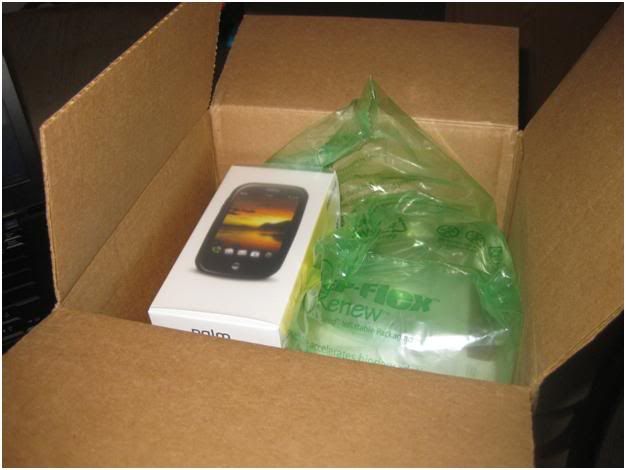
The friendly UPS man brought me this little box. Doesn't look too impressive, but I know what's inside! J


Open the box…nice bubble wrap they use these days:


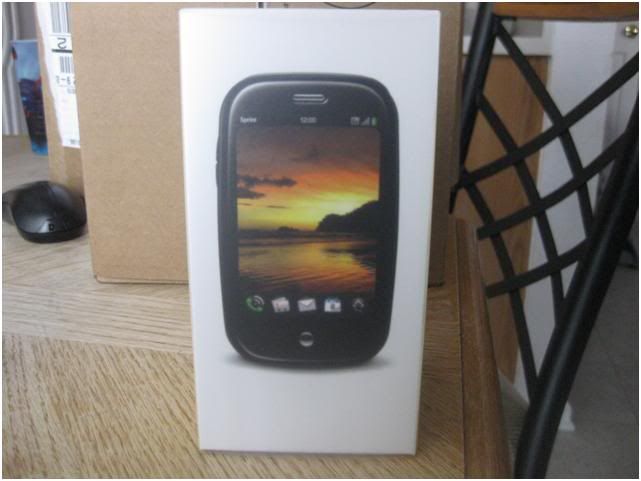
And there it is! I recently read an article about the new Pre builds in the "sunset box". Looks like I got one.

It's a pretty cool shaped box:

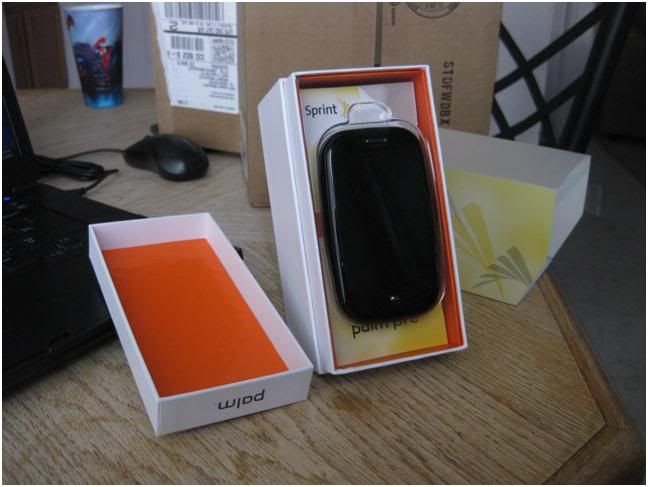
And there it is in all its beauty. It has a screen protector on it and I'll probably leave that on until it falls off so it doesn't look as clean as it could.


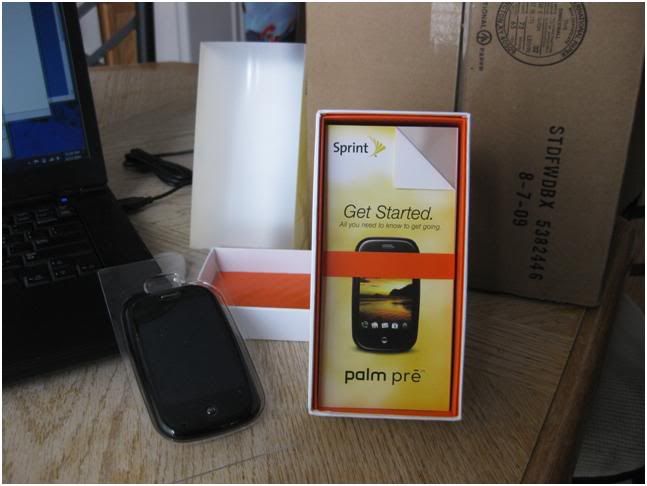
Nice packaging effort. I like the orange ribbons around the manuals and quick start guides.

The accessories underneath the manuals. There's a nice plastic cover over them.


Included in the package: A USB cable, headphones/hands free headset, pocket carrying pouch, and wall charger.

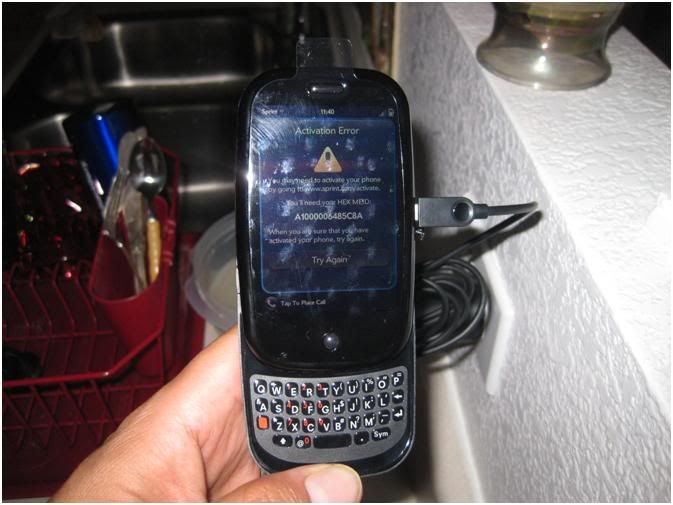
Now I'm ready to charge it up a little bit and get this bad boy activated! For some reason the phone won't activate without first switching my current line over…gee…imagine that? LOL

I'm extremely happy to get this thing going so I'm gonna call the Sprint people and get it started! WOO HOO! Happy day!